|
|||
|
|
|||
|
|
Question: What does the About Calgary Dial Up Wizard Do?
Answer: Configures
a computer to use Dial Up Networking to connect to the
Internet in 12 easy steps &
allows easy setup and customizing of a dial up connection.
Question: How much does the About Calgary Dial Up Wizard cost?
Answer: Nothing. About Calgary Dial Up Wizard is Free period.
Question: How big is the About Calgary Dial Up Wizard?
Answer: Very small (753 kb) it will easily fit on a floppy disk or download quickly.
Question: What are the requirements?
Answer: Microsoft Windows 9*, ME, 2000,
XP.
A dial up internet access account
at About Calgary!
Purchase a About Calgary Dial
Internet Access Account Here! Pricing
Is Here!
Question: Where do i get get About Calgary Dial Up Wizard?
Answer: Download About Calgary Dial Up Wizard Here! or get a FREE About Calgary CD Here the
Dial Up Wizard and many other free programs are included. FREE shipping in Canada and USA
The following allows you to see step by step what the About Calgary Dial Up Wizard does
Step 1. Click the "OK" button

Step 2. Select Network @world.net
About Calgary Only Supports @world.net network.
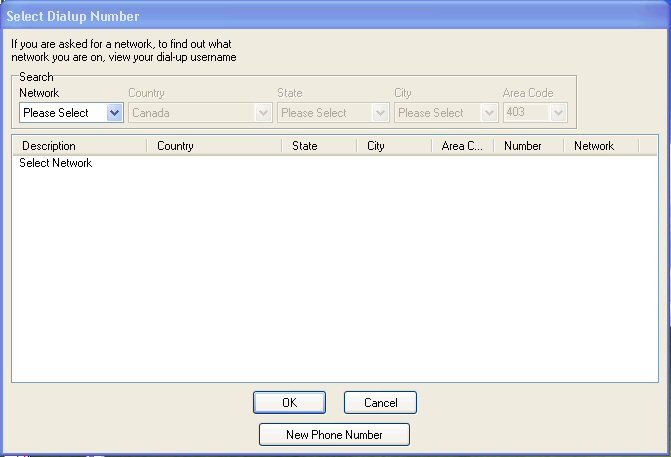
Step 3. Select Country
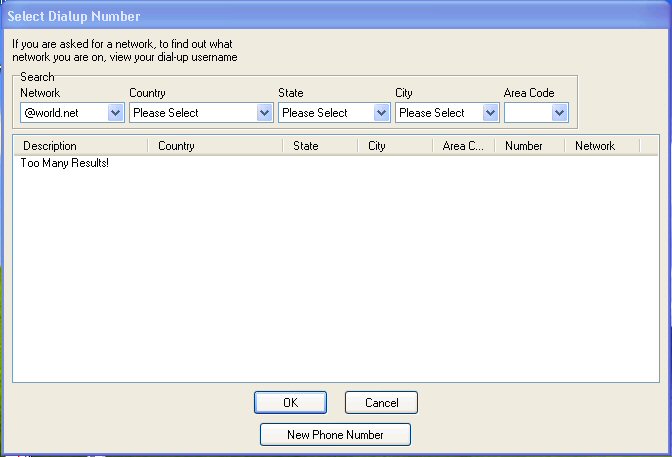
Step 4. Select Province or State
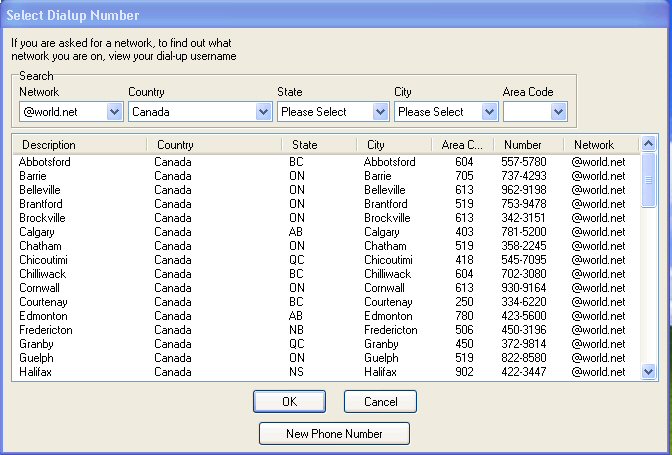
Step 5. Select City
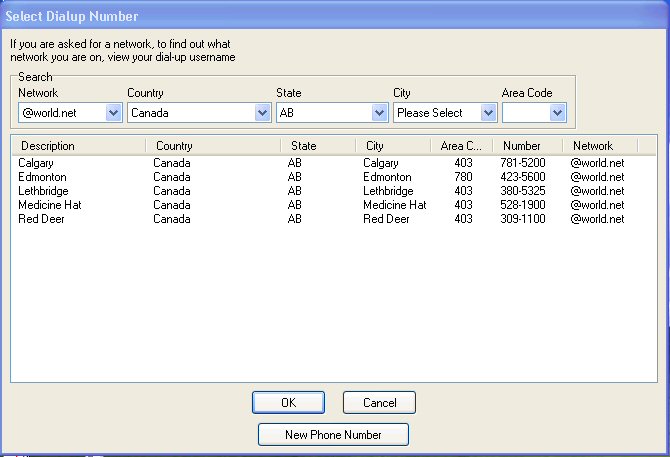
Step 6. Select Area Code
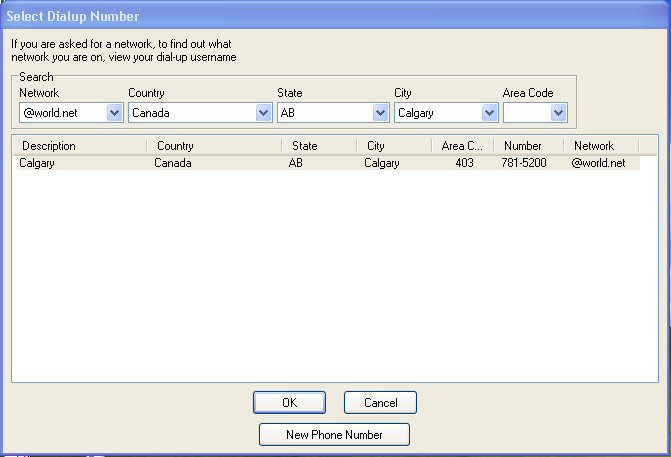
Step 7. Select Dial up location
phone number
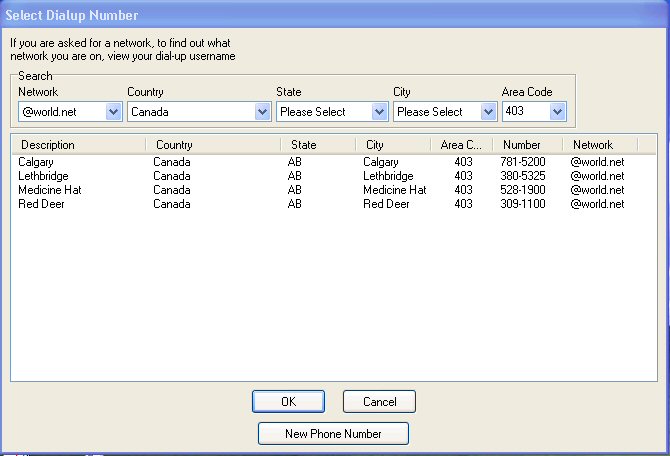
Step 8. Click the OK
button
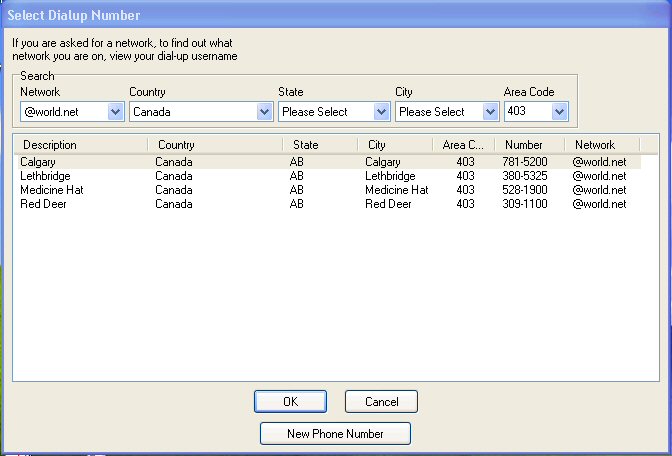
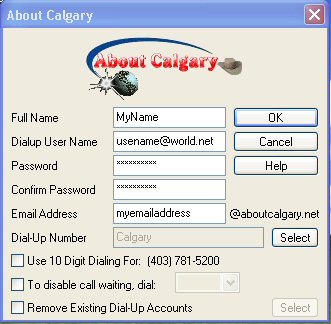
Step 9. Full Name, Dialup user name,
etc... Contact About Calgary for Dialup
User Name email etc...
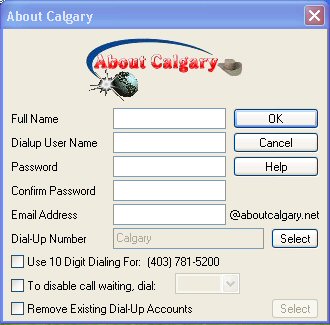
Step 10. Click the "OK" button
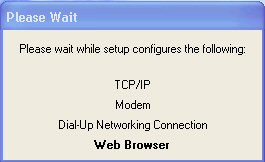
Wait...while the About Calgary
Dial Up Wizard works
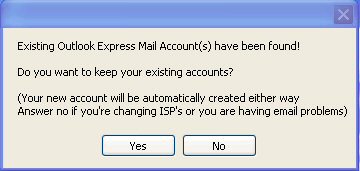
Step 11. If your not sure what to
do Click the YES button!
Step 12. Click the "OK" button

That's it About Calgary Dial Up
Wizard has completed it's work.
The About Calgary icon on your desktop
looks like ...

Step 1. Double Left Click on the
About Calgary icon on your desktop
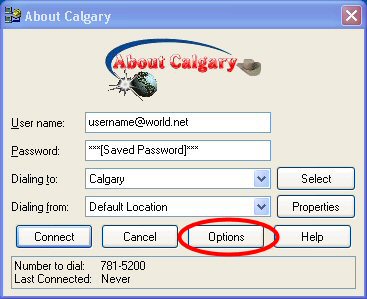
this will load the dialog box below
...
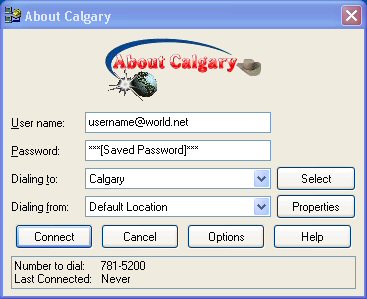
Step 2. Click the Connect button
to connect to the Internet
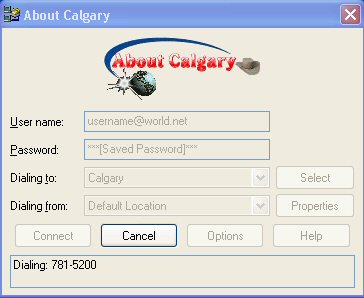
Wait...
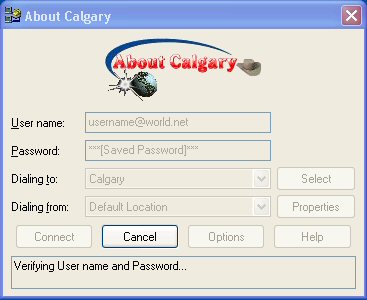
Wait until the above dialog box
disappears from your desktop.
Then the dialog box below will display
on your desktop
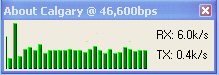
That's it you connected to the
Internet!
Your default web browser (Internet
Explorer, Netscape, or other web browser) will now load
this web page. Now you can explore
the Internet.
Where do i start you ask? About Calgary Here, Site Search Here, Internet Power Search Here
Once you know your Dial Up Internet
connection allows you to connect to the Internet.
You can customize your connection
more to your needs.
It is recommend to at least
look at the customizing options listed below.
First customizing we look at will be the Properties button
Click The Properties button
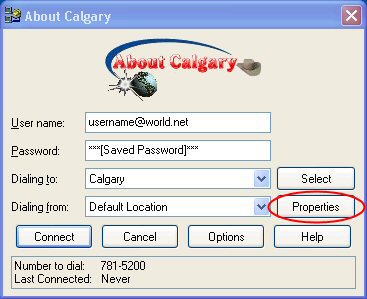
Disable Call Waiting option, is
not enabled by default
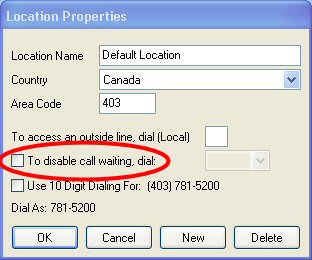
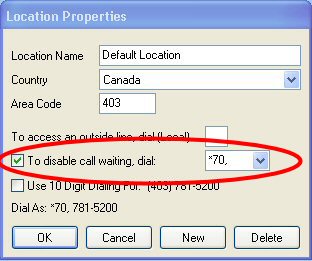
To Enable the Call Waiting feature.
Select (Click) the "To disable
call waiting, dial:" box
Then select *70, or 70#,
or 1170,
Now Click the OK button.
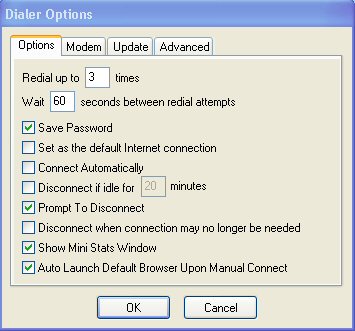
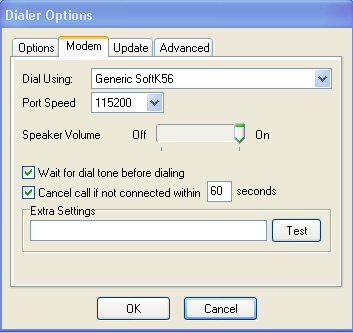
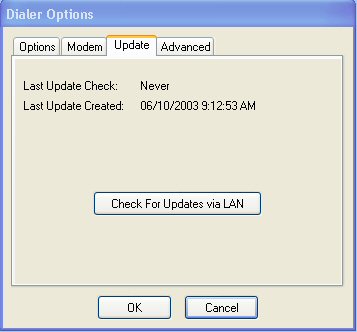
Click the Options button